Alibaba Qwen Team Introduces Qwen3.5-LiveTranslate-Flash: Real-Time Multimodal Interpretation Across 60 Languages at 2.8-Second Latency
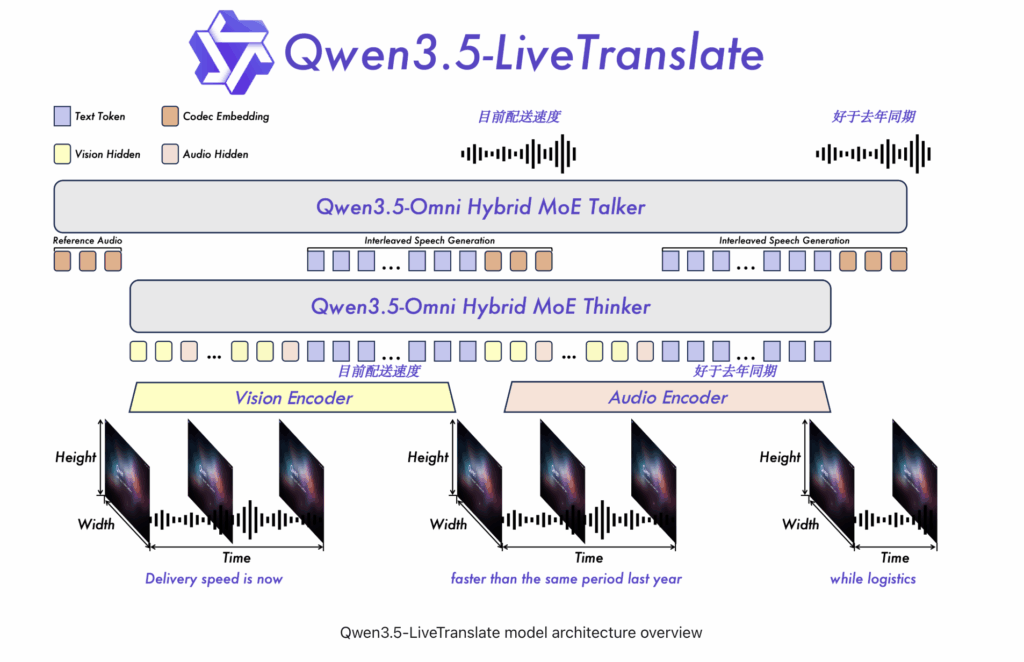
Simultaneous interpretation is one of the harder problems in applied AI. You’re asking a model to translate speech before the speaker has finished a sentence. Every extra second of delay breaks the illusion of real-time communication. Alibaba’s Qwen team has been chipping away at this with each release. Their latest model, Qwen3.5-LiveTranslate-Flash, brings that latency down to 2.8 seconds and expands input language coverage to 60 languages. https://qwen.ai/blog?id=qwen3.5-livetranslate A Meaningful Jump From the Previous Release The Qwen3-LiveTranslate-Flash handled 18 input languages at roughly three seconds of latency. Qwen3.5-LiveTranslate-Flash brings that down to 2.8 seconds, expands input coverage to 60 languages, and adds speech output in 29 languages. That’s more than a 3× expansion in language coverage on the input side. For devs building multilingual products, this reduces the need for per-language model switching in most global enterprise scenarios. The latency improvement comes from a technique for processing what the team calls ‘reading units.’ Rather than waiting for a full sentence to arrive before producing output, the model decides when enough meaning has accumulated in a segment to commit to a translation. It streams output continuously while the speaker is still talking. This is the same underlying logic as semantic unit prediction but with a tighter implementation that shaves off that extra 200 milliseconds. Vision Is Now a First-Class Input Most translation systems treat audio as the only input signal. That works fine in clean studio conditions. It breaks down in a crowded conference room, a noisy trade floor, or anywhere with overlapping voices and bad acoustics. Qwen3.5-LiveTranslate-Flash takes a different approach. It analyzes visual information in parallel with audio on-screen text, physically shown objects, lip movements, and gestures. When a word is phonetically ambiguous or the audio stream degrades, the visual context fills the gap and sharpens the translation decision. This is not a minor feature. In real-world deployment, audio quality is rarely guaranteed. Having a vision channel means the model handles the messy reality of live interpretation more gracefully than audio-only systems. Voice Cloning Happens in Real Time This is the part that stands out most in the Qwen3.5 release. Standard translation systems replace the speaker’s voice with a generic synthesis voice. Qwen3.5-LiveTranslate-Flash instead clones the characteristic voice features of the original speaker during the translation itself. A single spoken sentence is enough for the model to perform this acoustic adaptation. For listeners on the receiving end, the translated output sounds like the same person speaking the target language and not a robotic substitute. In live conference interpretation, multilingual livestreams, or international customer calls, this is important. The experience feels noticeably more human than what current systems deliver. Configure Domain-Specific Keywords One persistent failure mode for translation models in professional settings is proper nouns and specialized vocabulary. A model translating a medical briefing might consistently mistranslate a drug name. A legal interpretation session breaks down over a technical statute term. Qwen3.5-LiveTranslate-Flash addresses this with dynamic keyword configuration at runtime. Developers can inject a glossary of brand names, medical terms, legal terminology, or technical vocabulary, and the model handles those terms significantly more reliably. This isn’t available in most general-purpose translation APIs and it closes a real gap for domain-specific enterprise deployments. Benchmark Performance On FLEURS and CoVoST2 — two established benchmarks for multilingual speech translation — Qwen3.5-LiveTranslate-Flash outperforms major commercial alternatives. FLEURS tests translation quality across a wide variety of language pairs under real acoustic conditions. CoVoST2 covers 21 translation directions from speech, making it a practical proxy for multilingual pipeline performance. Marktechpost’s Visual Explainer ✓ Developer Guide How to Use Qwen3.5-LiveTranslate-Flash A step-by-step integration guide — from setup to production-ready real-time translation 1Overview 2Prerequisites 3Connect 4Send Audio 5Visual Input 6Keywords 7Languages What it does Qwen3.5-LiveTranslate-Flash at a glance Qwen3.5-LiveTranslate-Flash is an API-only, closed-weight real-time translation model from Alibaba’s Qwen team. It takes audio and video frames as simultaneous inputs and outputs translated text and speech. The model uses a WebSocket-based protocol over Alibaba Cloud Model Studio. Latency 2.8s Per token to audio out Input languages 60 Speech + visual input Speech output 29 Languages with voice Protocol WebSocket Persistent connection ✓ Vision-enhanced comprehension — lip movements, gestures, and on-screen text all feed into the translation decision alongside audio ◆ Real-time voice cloning — clones the original speaker’s voice profile in the translated output from a single spoken sentence ◆ Semantic unit prediction — commits to output segments before a full sentence ends, enabling continuous streaming without waiting for complete utterances ◆ Dynamic keyword configuration — inject domain-specific glossaries at runtime for technical, medical, or legal terminology Before you start Prerequisites You need an Alibaba Cloud account with Model Studio access and a valid DashScope API key. The model is available through the qwen3-livetranslate-flash-realtime model ID. 1 Create an Alibaba Cloud account Sign up at alibabacloud.com and activate Alibaba Cloud Model Studio in your account dashboard. 2 Get your DashScope API key Navigate to Model Studio → API Keys. Generate a key and store it as the environment variable DASHSCOPE_API_KEY. Never hardcode it in source files. 3 Install the Python dependency Install the websocket-client package for the WebSocket connection. For audio capture, also install pyaudio. 4 Check your audio setup The model accepts 16kHz, 16-bit PCM mono audio on input. Confirm your microphone or audio source can output in this format before connecting. BASHCopy # Install dependencies pip install websocket-client pyaudio # Set your API key as an environment variable export DASHSCOPE_API_KEY=”your_key_here” Step 3 — Connection Establish the WebSocket connection The model uses the WebSocket protocol for a persistent, bidirectional connection. You authenticate via a Bearer token in the connection header using your DashScope API key. PYTHONCopy import json, websocket, os API_KEY = os.getenv(“DASHSCOPE_API_KEY”) API_URL = ( “wss://dashscope-intl.aliyuncs.com” “/api-ws/v1/realtime” “?model=qwen3-livetranslate-flash-realtime” ) def on_open(ws): print(“Connected to Qwen3.5-LiveTranslate-Flash”) def on_message(ws, message): data = json.loads(message) print(“Translation event:”, data) def on_error(ws, error): print(“Error:”, error) ws = websocket.WebSocketApp( API_URL, header=[“Authorization: Bearer ” + API_KEY], on_open=on_open, on_message=on_message, on_error=on_error ) ws.run_forever() ⓘ The connection stays open for the full session. You do not reconnect per